English (Canada)
 Dansk
Dansk Deutsch
 English
 English (UK)
 Español
 Francais
 Italiano
 Magyar
 Nederlands
 Norsk
Norsk Polski
 Português (Brasil)
 Pycckui
 Suomi
Suomi Svenska
 עברית
עברית العربية
 日本语
日本语 繁體中文
繁體中文 한국어
한국어
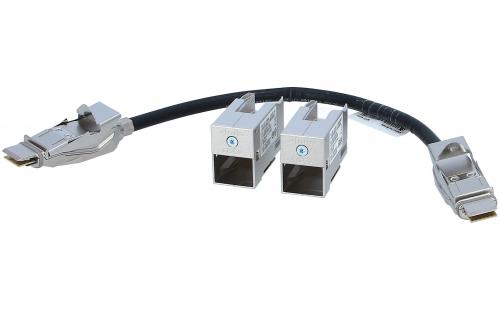
How to stack 9300 switches?
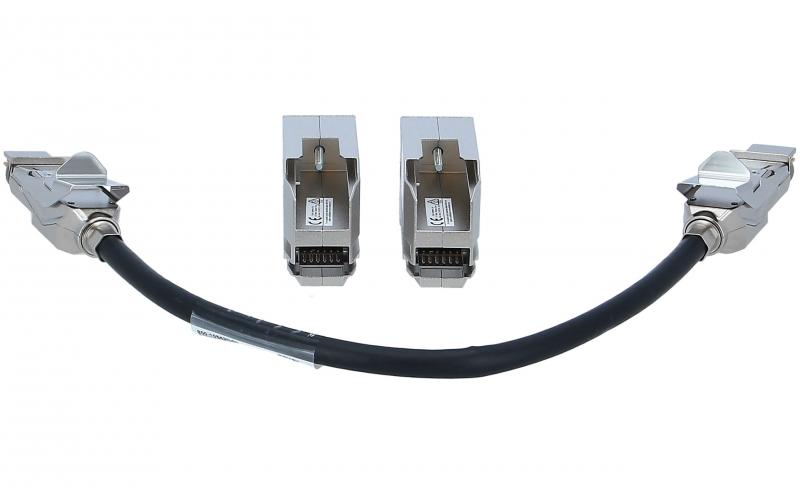
To stack Cisco Catalyst 9300 switches, you can use StackWise technology. StackWise allows you to connect up to eight switches in a stack, creating a single logical unit with increased scalability and redundancy. To stack the switches, you need StackWise cables and StackWise modules. First, power off all the switches that you want to stack. Then, connect the StackWise cables to the StackWise ports on each switch. Ensure that the cables are securely connected. Next, insert the StackWise modules into the StackWise module slots on the switches. Once the cables and modules are properly installed, power on the switches. The switches will automatically detect each other and form a stack. You can verify the stack formation using the show switch stack-ports summary command.
Physical Stacking of 9300 Switches
Physical stacking of 9300 switches allows network administrators to create a single logical switch entity by connecting multiple switches together. This provides several benefits, including simplified management, increased capacity, and improved redundancy.
To stack 9300 switches physically, follow these steps:
1. Ensure that all switches are running the same version of Cisco IOS XE software and have the same license level. This ensures compatibility and functionality across the stack.
2. Connect the switches using stack cables. The 9300 series switches use Cisco StackWise technology, which requires special stack cables. Stack cables should be connected in a daisy-chain fashion, with one cable connecting the first and second switches, the second cable connecting the second and third switches, and so on.
3. Power on the switches in the desired order. The first switch in the stack will become the stack master, responsible for managing the entire stack. The other switches will become stack members.
4. Configure stack settings. Once the switches are powered on, the stack master will automatically assign stack member numbers to each switch. This allows for easy identification and management of individual switches within the stack.
5. Verify the stack status. Use the "show switch stack-ports" command to verify that all stack cables are properly connected and functioning. The command "show switch stack-ring" can be used to view the stack ring topology.
6. Configure the stack as needed. The stack can be managed as a single entity, with configuration changes applied to the stack master and automatically propagated to all stack members.
It's important to note that the latest point of view on stacking 9300 switches includes the introduction of Cisco StackWise Virtual technology. This allows for the creation of multiple logical switches within a single physical stack, providing increased flexibility and scalability. StackWise Virtual also enables the use of different switch models in the same stack, allowing for seamless integration of new switches into an existing stack.
In conclusion, physical stacking of 9300 switches offers numerous advantages for network administrators. By following the steps outlined above and considering the latest advancements in stacking technology, administrators can create a highly resilient and efficient network infrastructure.
Troubleshooting Stacking Issues on 9300 Switches
Troubleshooting Stacking Issues on 9300 Switches:
Stacking Cisco Catalyst 9300 switches allows for simplified management, increased bandwidth, and enhanced resiliency. However, like any technology, issues may arise during the stacking process. Here are some troubleshooting steps to help resolve stacking issues on 9300 switches:
1. Verify Hardware Compatibility: Ensure that the switches being stacked are of the same model and have compatible stacking modules. Check the Cisco documentation for the specific requirements.
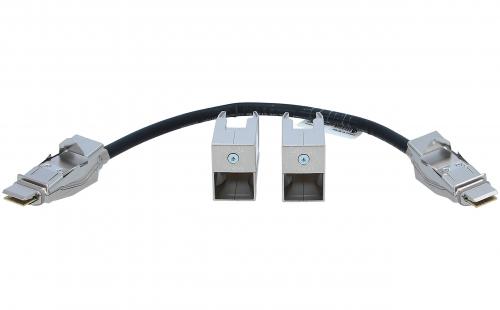
2. Check Stacking Module Connections: Ensure that the stacking cables are securely connected to the stacking modules on each switch. Loose or faulty connections can lead to stacking problems.
3. Verify Stacking Software Version: Ensure that all switches in the stack are running the same software version. Mismatched software versions can cause compatibility issues and prevent proper stacking.
4. Validate Stack Configuration: Verify the stack configuration using the Cisco command-line interface (CLI) or graphical user interface (GUI). Check that the stack members are correctly identified and that the stack master is functioning properly.
5. Troubleshoot Stack Master Election: If the stack master is not functioning correctly, it can cause issues with the entire stack. Use the 'show switch' command to identify the current stack master and troubleshoot any potential problems.
6. Check Power Supply: Insufficient power supply can cause stacking issues. Ensure that each switch in the stack has an adequate power source and that the power supplies are functioning correctly.
7. Monitor Stack Health: Use the 'show switch stack-ports summary' command to monitor the health of the stack ports. Check for any errors or inconsistencies that could be causing stacking problems.
8. Contact Cisco Support: If the above steps do not resolve the stacking issues, it is recommended to contact Cisco Support for further assistance. They can provide more specific guidance based on the latest troubleshooting techniques and best practices.
Remember to always refer to the official Cisco documentation and support resources for the most up-to-date information on troubleshooting stacking issues on 9300 switches.